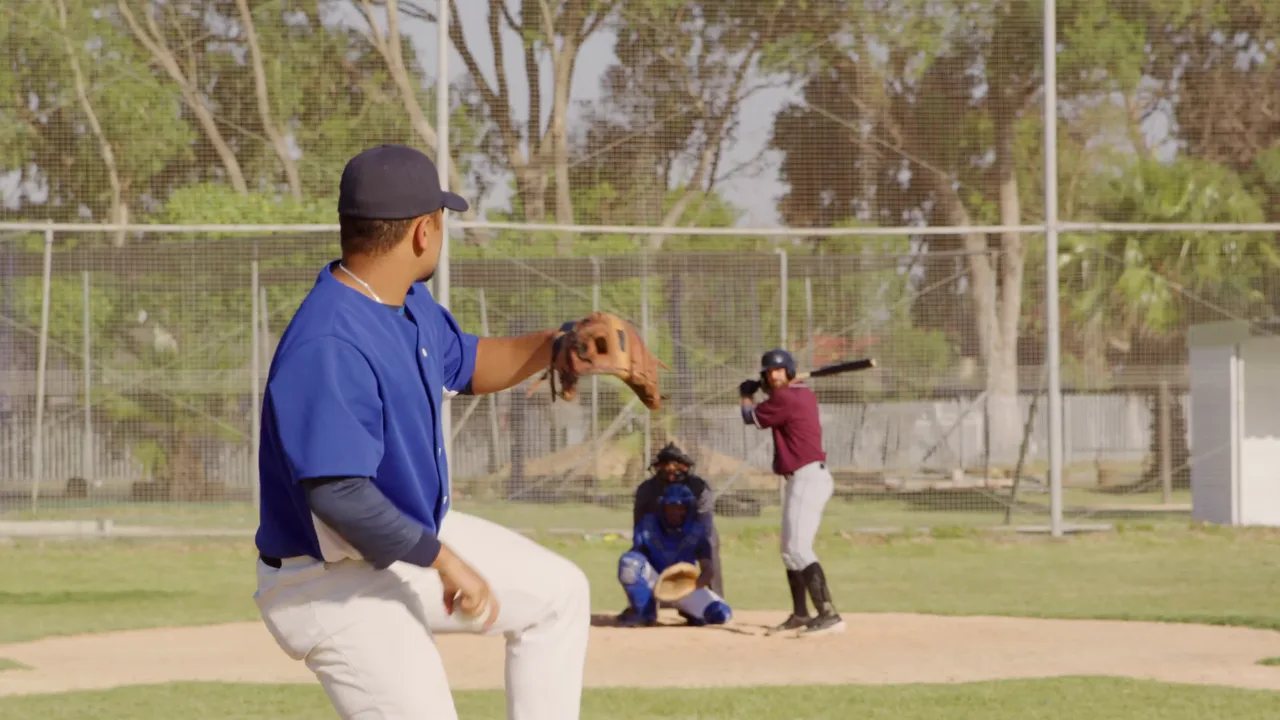

Compare every rep.
Place clips side by side, review positions frame by frame, and make technique changes visible.
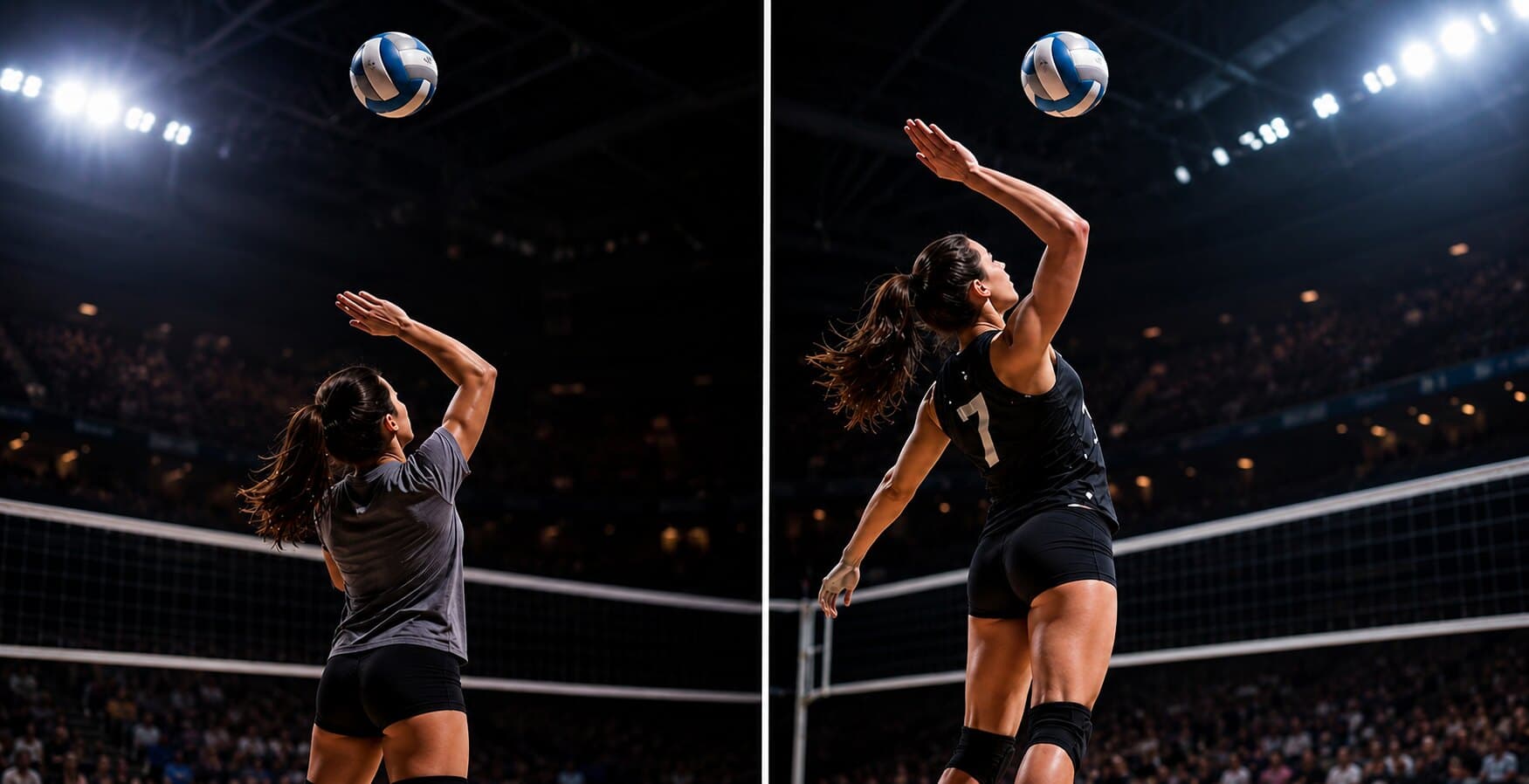
KineVision for Baseball
Break down hitting and pitching frame by frame, mark the moments that matter, and make mechanical changes clear to every player.
Video intelligence
KineVision gives coaches the tools to turn training footage into clear, actionable feedback. Slow-motion and frame-by-frame playback help you find the exact moment that matters, while drawing tools, timers, skeleton overlay, and side-by-side comparison make technique easier to explain. Capture or import video on iPhone or iPad, review reps during practice, and share visual coaching notes with athletes right when they need them. It's like a coaching whiteboard, replay room, and movement analysis tool in one app.
Analysis tools
Place clips side by side, review positions frame by frame, and make technique changes visible.
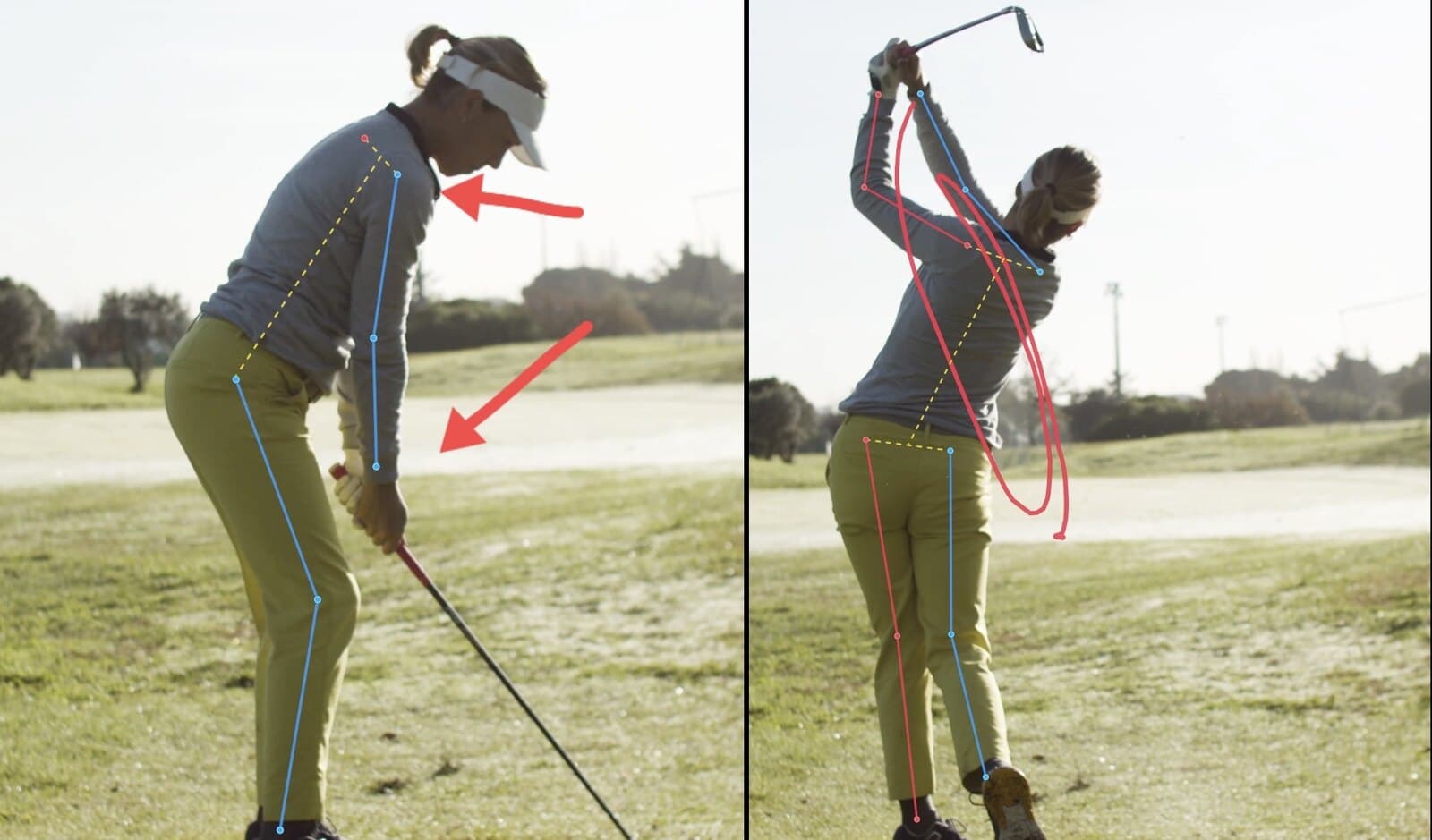
Add lines, angles, and timing marks directly on the video so feedback is precise and easy to understand.
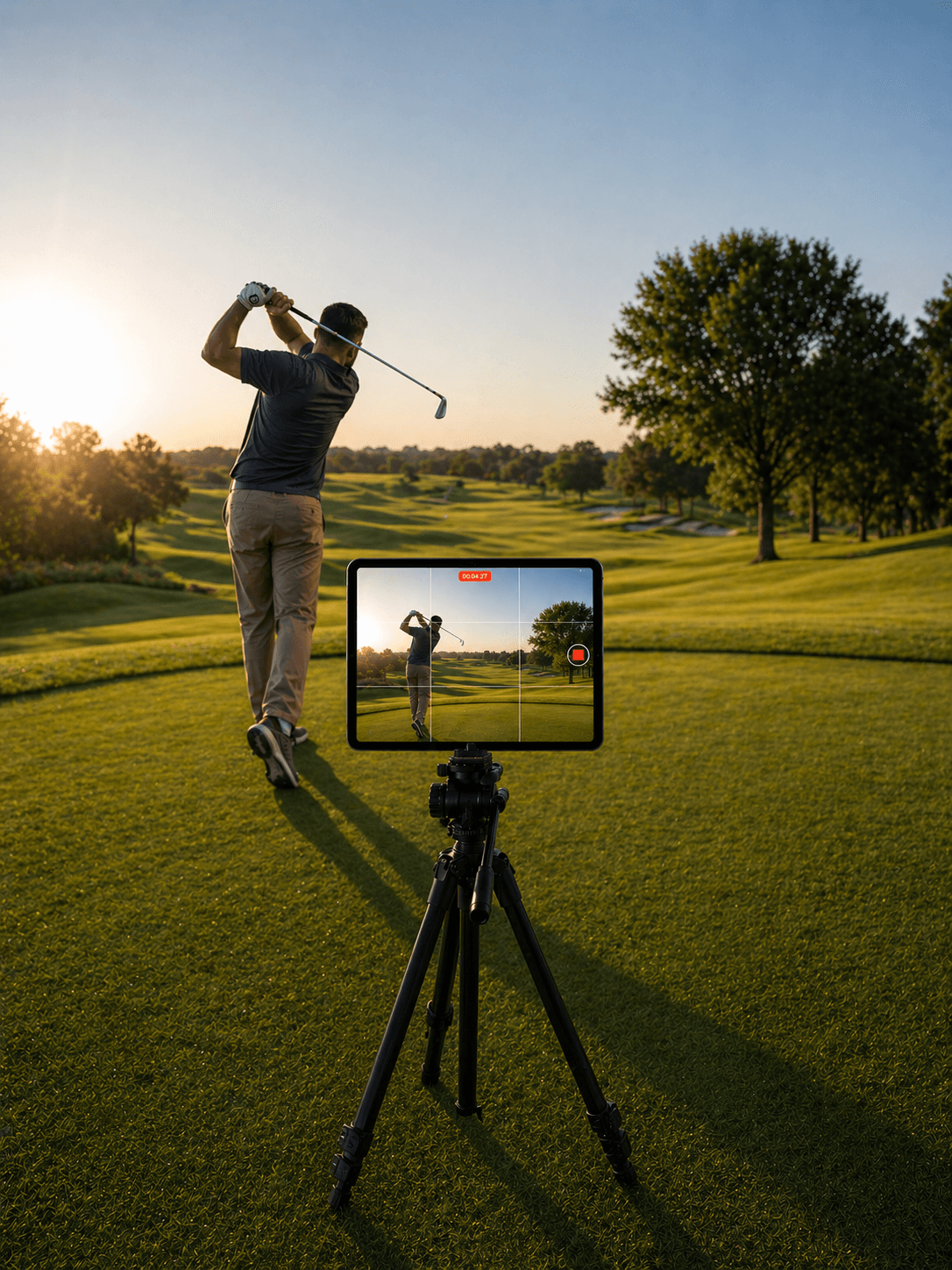
Capture, review, annotate, and share without moving the session into a complicated cloud workflow.
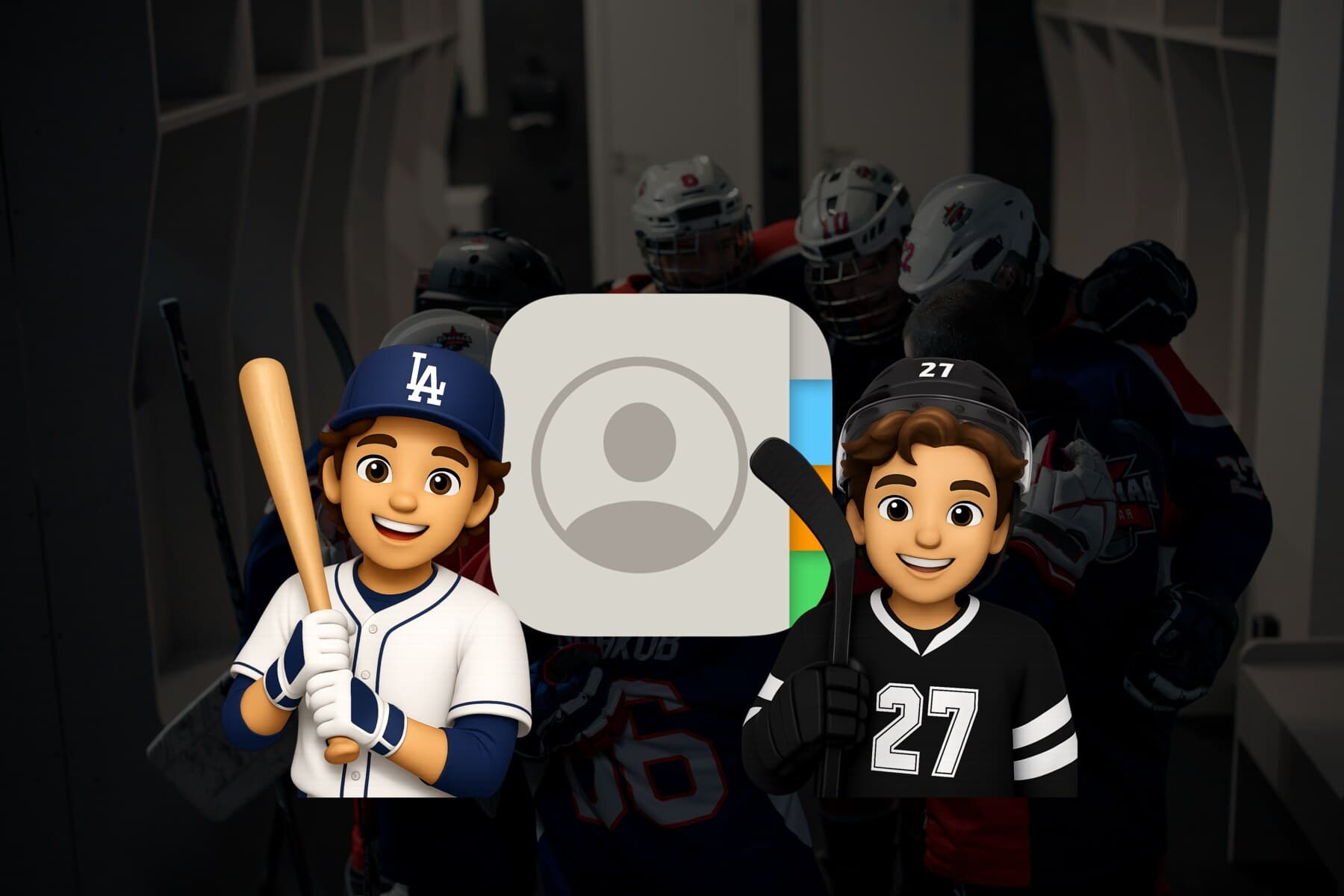
Build teams from Apple Contacts, keep athlete video history organized, and share feedback through native iOS integrations.
iPhone and iPad
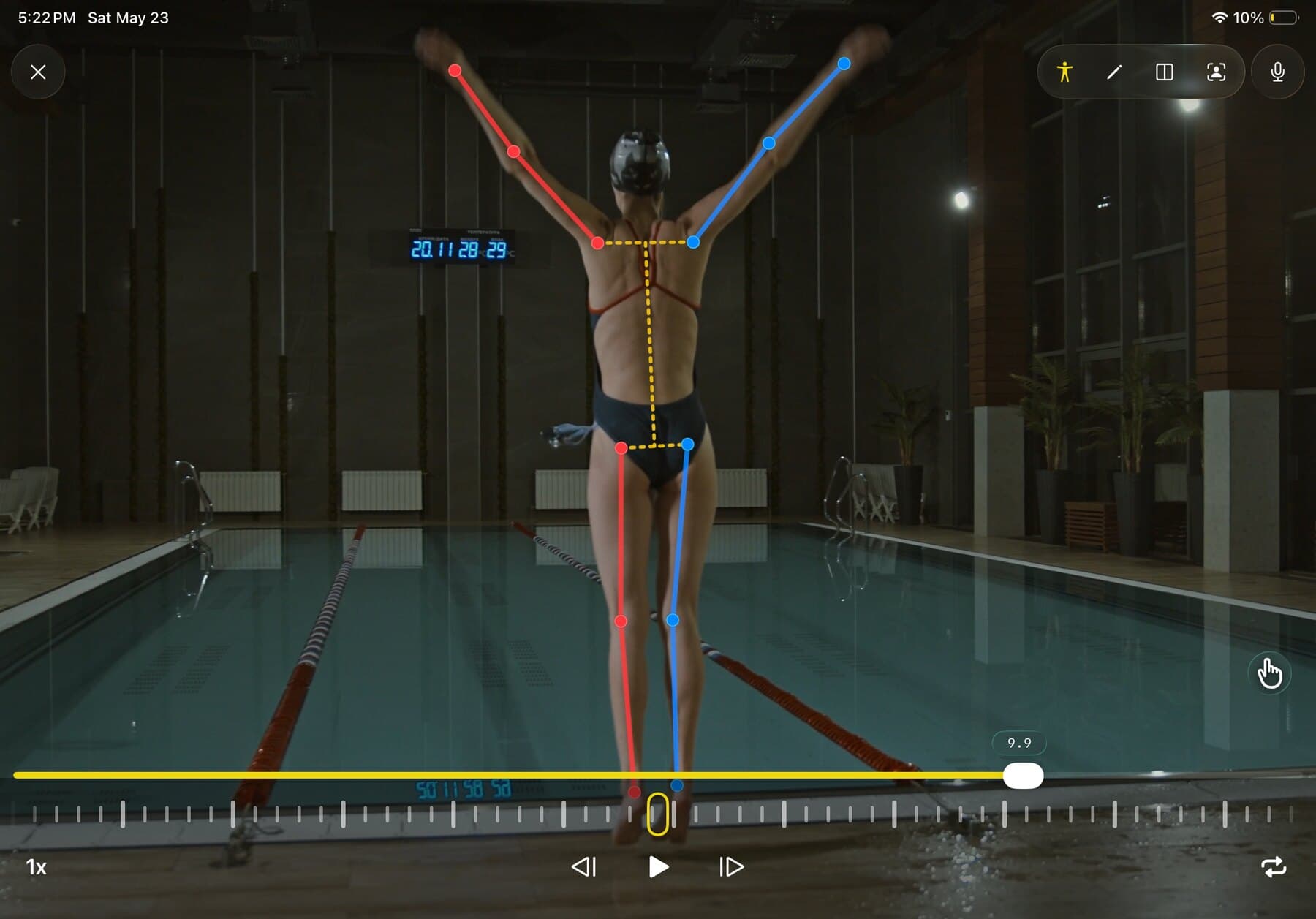
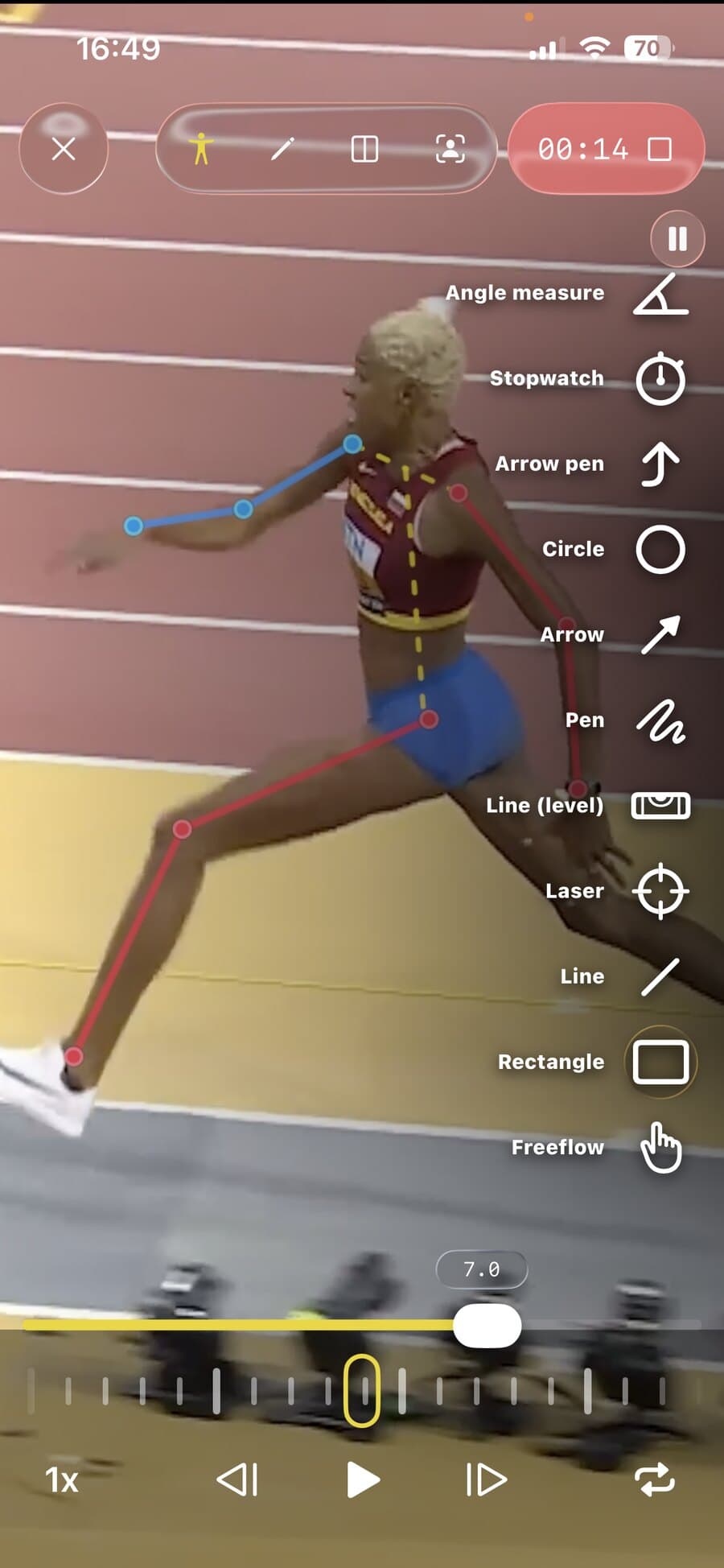
KineVision is compatible with iPhone and iPad, so coaches can capture reps on the field, review details on a larger canvas, and keep the same native iOS workflow across practice, analysis, and athlete feedback.
Reviews
4.9
On the Apple App Store
“KineVision is a GREAT alternative, especially considering the cost is less. I actually transferred all my videos to KineVision.”
Yoon VB · 🇺🇸 Apr 2026
“This does exactly what I need - side by side comparison, slow motion, drawing on video. Use it with my athletes every session.”
Goni$:) · 🇺🇸 Jan 2026
“I film my deadlifts and squats to check form between sets. The slow motion and frame by frame scrubbing is smooth.”
Bruclenes · 🇺🇸 Jan 2026
“This offers a fantastic way to help soccer players learn proper technique with the ball. The developer is outstanding.”
Warpkorbreach · 🇺🇸 Mar 2026
“I’m using it to analyze baseball swings and I’m really liking this app so far.”
Spamdayo · 🇺🇸 Apr 2026
“Great tool to analyze and compare any kind of movement!”
flx_xlf · 🇦🇹 Jan 2026
“Exactly what I needed for quick feedback and coaching to my clients.”
Crillet · 🇸🇪 Dec 2025
“There is so much it can do, I can’t believe something like that exists. I’m using it for bouldering by myself and my dad for running.”
klakla10 · 🇵🇱 Mar 2026
“KineVision is a GREAT alternative, especially considering the cost is less. I actually transferred all my videos to KineVision.”
Yoon VB · 🇺🇸 Apr 2026
“This does exactly what I need - side by side comparison, slow motion, drawing on video. Use it with my athletes every session.”
Goni$:) · 🇺🇸 Jan 2026
“I film my deadlifts and squats to check form between sets. The slow motion and frame by frame scrubbing is smooth.”
Bruclenes · 🇺🇸 Jan 2026
“This offers a fantastic way to help soccer players learn proper technique with the ball. The developer is outstanding.”
Warpkorbreach · 🇺🇸 Mar 2026
“I’m using it to analyze baseball swings and I’m really liking this app so far.”
Spamdayo · 🇺🇸 Apr 2026
“Great tool to analyze and compare any kind of movement!”
flx_xlf · 🇦🇹 Jan 2026
“Exactly what I needed for quick feedback and coaching to my clients.”
Crillet · 🇸🇪 Dec 2025
“There is so much it can do, I can’t believe something like that exists. I’m using it for bouldering by myself and my dad for running.”
klakla10 · 🇵🇱 Mar 2026
Pricing
Free
$0
Essential tools for fast review and coaching feedback.
Max
$6.66
per month, billed annually
Unlock the full coaching workflow with premium tools and higher-quality delivery.